
Adding Clickable Hyperlinks to Text in Corjl
The hyperlink feature allows both designers and customers to add clickable links to text elements in Corjl designs. This feature works across desktop and mobile devices, making it easy to create interactive designs with links to websites, social media, or email addresses.
Note: Hyperlinks are only available for 2.0 designs, not Legacy (1.0) designs.
🚨 Important Information for Designers
PDF Downloads Required: Customers will only be able to see and use the Hyperlink feature if your listing offers PDF as a download format.
➕ How to Add a Hyperlink Designer View (Desktop & Tablet/iPad)
Method 1: Right-Click Menu
- Select your text
- Right-click and choose Insert Link
- Type or paste in your link and click OK


Method 2: Hyperlink Icon Button in Right Tools Panel
- Select your text
- Click the hyperlink icon below the text area on the right
- Enter your link and click OK

The linked text will appear underlined.
Method 3: Icon Button Directly On Canvas
- Highlight your text
- Click on hyperlink icon that appears in the floating tool bar
- Enter your link and click OK

Method 4: Create Hyperlink Shortcut
- Select the text box you would like to apply the hyperlink to
- Use keyboard shortcut Press Ctrl+K (Windows) or Cmd+K (Mac)
- Enter your link and click Ok
✏️ How to Edit a Hyperlink
Once created, you can use each of the above methods to select and edit the existing Hyperlink at any time.
📲 Adding Hyperlinks on a Mobile Device
To add a Hyperlink to a design on a Mobile Device, follow the steps below:
-
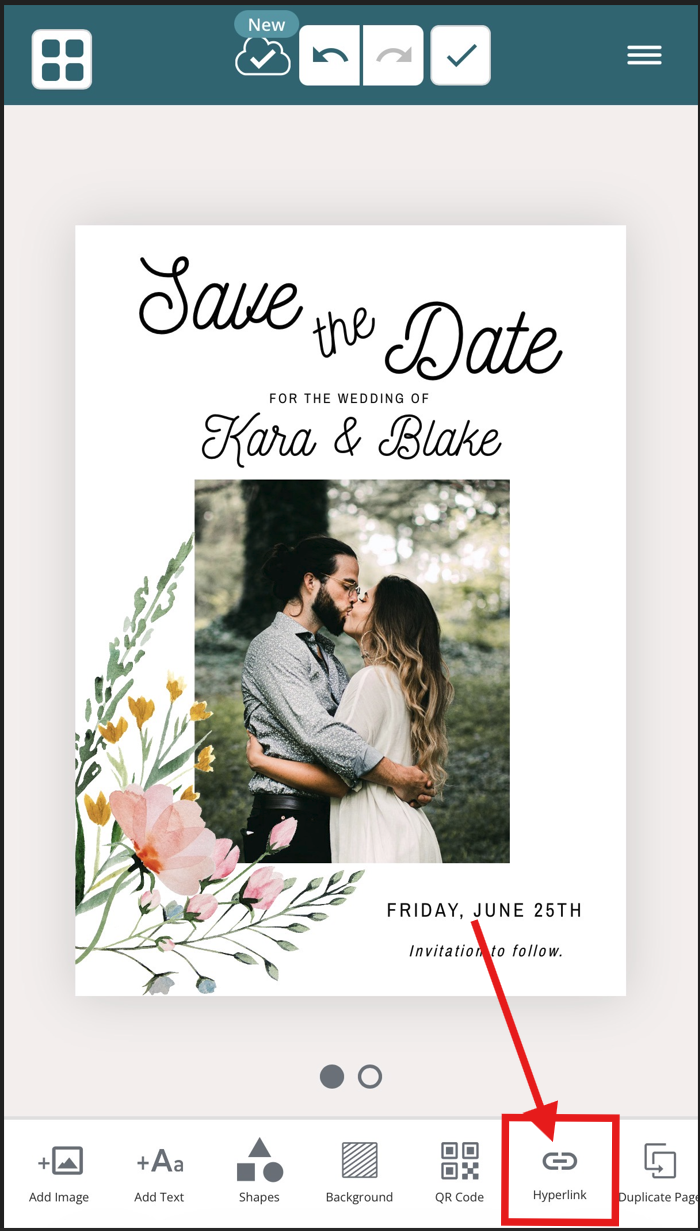
Tap the Hyperlink Icon Button found in the bottom menu of the screen:
-
On the next screen, type in the text you want displayed for the link in the Text field, and the website URL in the Enter A Link field:
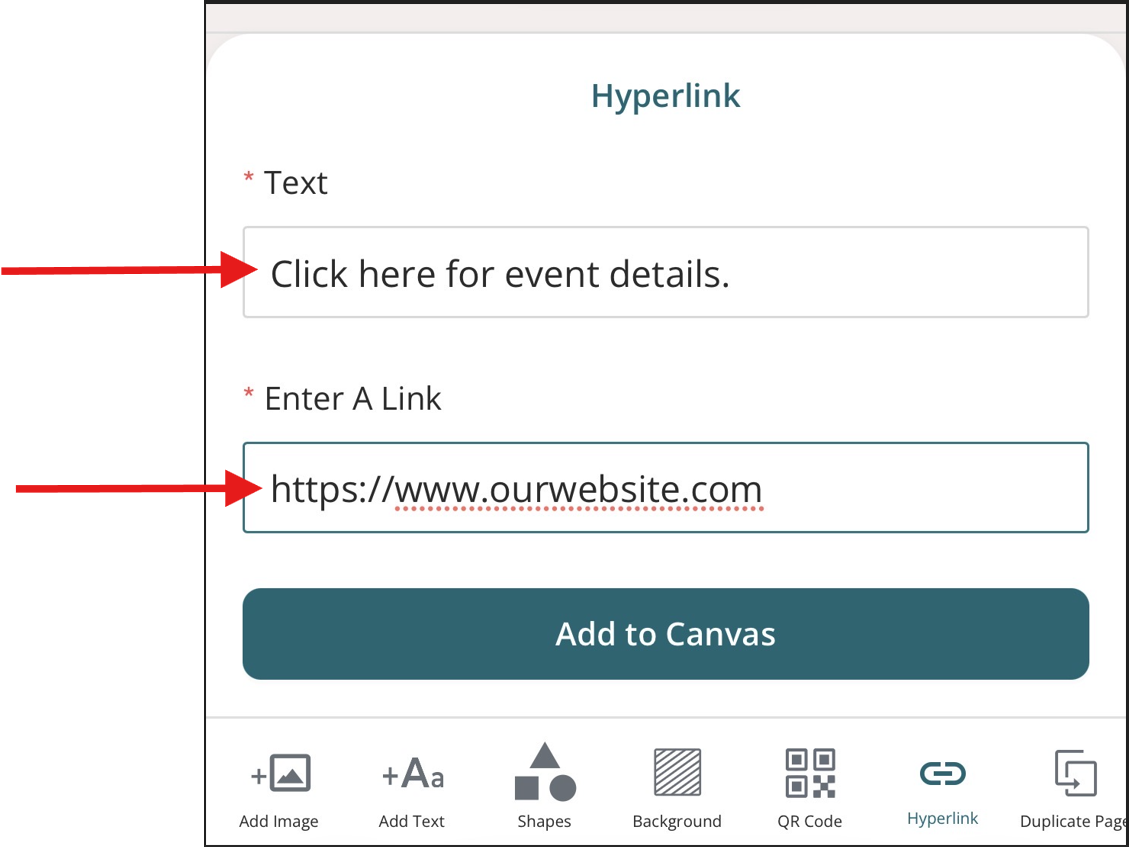
- Click Add to Canvas and your link will appear on the design. Use the text editing options to change the link appearance.
🔐Controlling Hyperlink Access
You can control whether customers can add or edit hyperlinks in two ways:
Global Settings (Design Defaults)
- Go to Global Settings → Text section.
- Toggle the Add hyperlinks checkbox.
- This setting applies to all new designs you create.
Design-Level Protections
- Open Design Protections for a specific design.
- Under the Text section, find Add hyperlinks.
- Uncheck to prevent customers from adding/editing links in that design.
- Existing links will remain clickable but can't be edited.
🚨Troubleshooting
Links Not Appearing for Customers
Check these settings:
- Is it a 2.0 design? (Legacy designs don't support hyperlinks)
- Does the listing include PDF downloads?
- Has the designer enabled hyperlinks in Design Protections?
- Is the customer selecting PDF as the Download File Format?
-
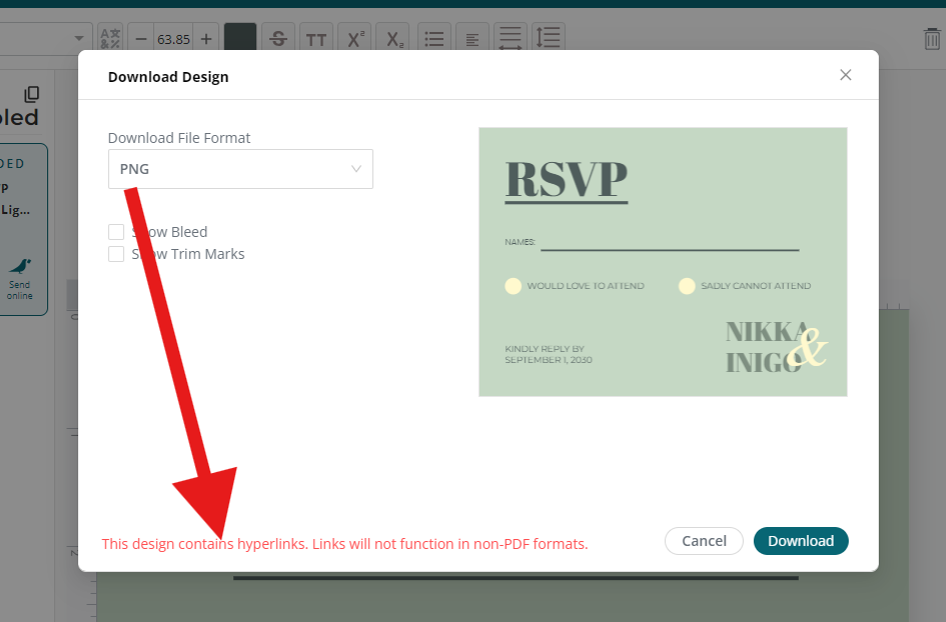
If the design contains a hyperlink and the customer selects any download format other than PDF, a warning message will appear on the Download screen letting them know that the hyperlink will only work in a PDF download.
-
📑 Quick Reference
| Action | Desktop | Mobile |
|---|---|---|
| Add Link | Select text → Click link icon OR Ctrl/Cmd+K | Select text → Tap hyperlink button |
| Edit Link | Select linked text → Click edit icon | Select linked text → Tap edit icon |
| Remove Link | Select linked text → Click remove icon | Select linked text → Tap remove icon |
| Copy URL | Select linked text → Click copy icon | Select linked text → Tap copy icon |