
Layer Options: Freeze, Lock, and Lock & Hide
Corjl offers three ways for designers to control what Layers can be seen and interacted with by the customer: Freeze, Lock or Lock & Hide. Learn about each option and their differences in the information below.
❄️ Freeze Layer Option
This feature “freezes” the location of an element so it can’t be moved, resized, or deleted (optional) on the canvas while still allowing customers to select and edit it.
For example, an image that has been frozen can not be moved or resized, but customers can still select the image and use the Style options to edit the image.
- To freeze an item, right click on it and select Freeze > Frozen.
- Choose Frozen and Deletable if you want to allow the customer to be able to delete the item.
- Customers can not unfreeze or freeze a Layer themselves.
- Elements that are frozen will show a “snowflake” icon image next to the layer name in the Layers panel.

🔒Lock Layer Option
The Lock Layer feature locks the layer in place completely so that it can not be moved, resized, or edited in any way by the customer.
- Customers will still see the locked layer in the Layers panel.
- Customers can also lock layers themselves, but they can not unlock a layer that has been locked by the designer.
🔏Lock & Hide Layer Option
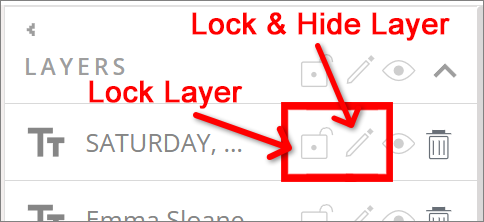
The Lock & Hide feature allows designers to lock a layer the same as the Lock feature, but it will also hide the locked layer from the Layers panel so the customer can not see it.
- Click the "pencil" icon button in the layer to enable the feature.
- Clicking on the "pencil" icon button again will unhide the layer but keep it locked.
- Click a second time on the "lock" icon button to completely unlock the layer.
🚨 Please note: Layers that are Locked, Locked & Hidden, or Frozen can not have their Layer position on the canvas changed by customers. This means that other layers can not be moved above or below these layers, either on the Layers panel, or by using the "Arrange" options in the right-click menu.