
Design Presets
What are presets?
Presets are reusable blank canvases with size and print settings already set. Pick one and start designing right away, without entering dimensions first.
Corjl includes over 90 ready-made presets, from 5 x 7 in invitations to tags, labels, signs and menus. You can also save your own sizes as presets so you never have to set them up twice.
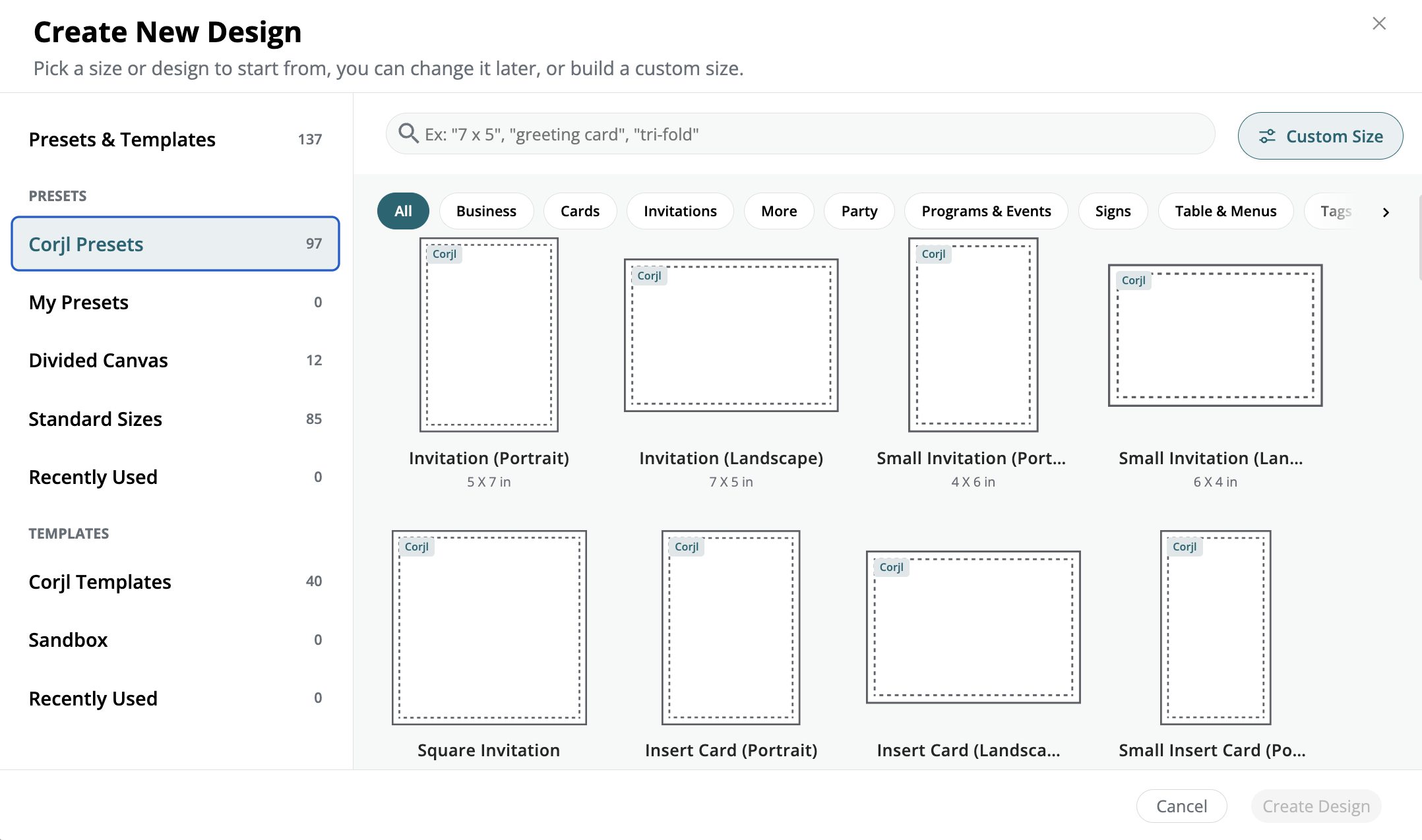
Where to find presets
- Go to Designs in the top navigation.
- Select + Create Design
-
Or select the Presets icon from the left panel (below Designs and Templates).
Browsing and searching presets
All presets are displayed by popularity. For example, the most popular preset/design size is the 5 x 7 in. (portrait) which can be used for a variety of digital templates and printable items such as invitations.
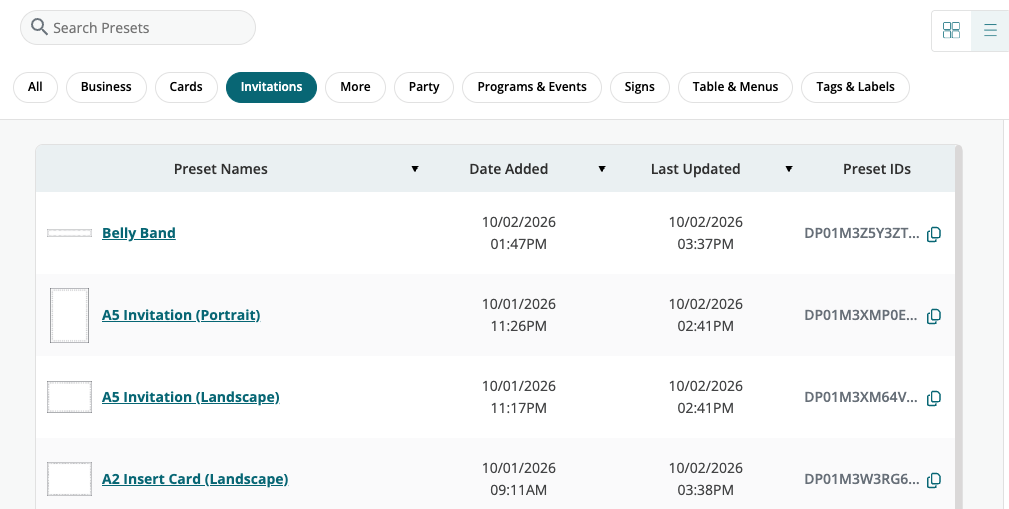
- Filter by category. Use the chips above the grid: Business, Cards, Invitations, Party, Programs & Events, Signs, Table & Menus, Tags & Labels, and More.
- Search by name. Type in Search Presets, for example "insert card" or "square."
- Change the view. Drag the thumbnail slider to make previews larger or smaller, or switch between grid view and list view.
Each preset shows its name, orientation and finished size. A few examples from the library:
| Preset | Size |
|---|---|
| Invitation (Portrait) | 5 x 7 in |
| Invitation (Landscape) | 7 x 5 in |
| Small Invitation (Portrait) | 4 x 6 in |
| Square Invitation | 5 x 5 in |
| Insert Card (Portrait) | 3.5 x 5 in |
| Small Insert Card (Portrait) | 2 x 3.5 in |
| Card (Portrait) | 2.75 x 3.75 in |
List view adds each preset's created date, last-updated date and preset ID.
Start a new design from a preset
- Select Designs from the seller menu.
- Click the Presets icon in the left panel.
- Browse the presets in thumbnail view or list view, using the selector at the top right.
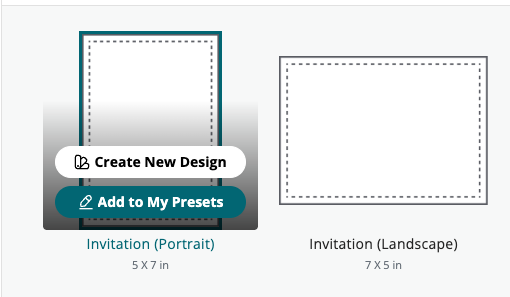
- Hover over a preset to see two options: Create New Design and Add to My Presets.
- Click Create New Design. The preset opens as a new design in your Designs view, ready to modify and save.
Your new design appears in your Designs list with a name starting "My New Design." The original preset is not changed, so you can start as many designs from it as you like.
Customize a preset in My Presets
Add any Corjl preset to My Presets to customize it and keep your own version for future designs.
- Hover over a preset and click Add to My Presets.
- Open the My Presets tab. The preset you added appears there with a New label.
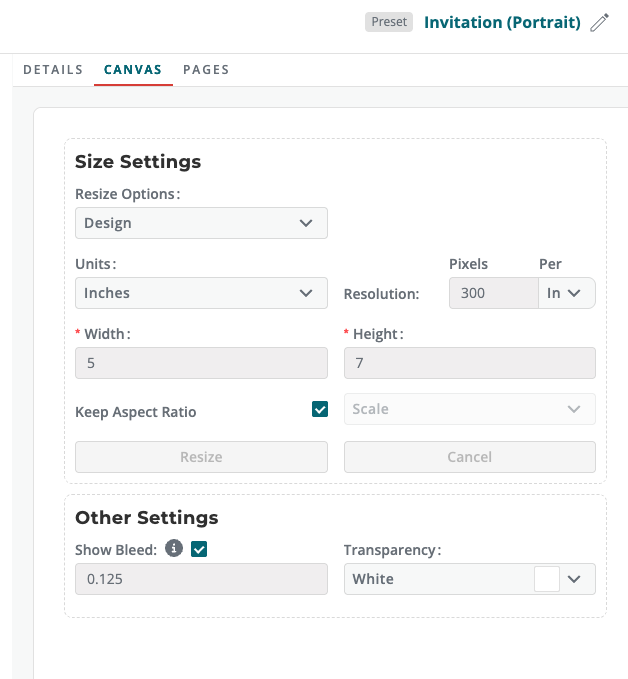
- Open the preset to edit it. On the Canvas tab you can set:
- Size Settings: units, width, height, resolution and Keep Aspect Ratio.
- Other Settings: bleed (0.125 in by default) and transparency.
- Use the toggle at the top right to switch views. The gear icon shows Preset Settings; the other button switches to preset mode.
- Your preset is available right away. Hover over it and click Create New Design to use it.
Create your own custom preset
If the size you sell isn't in the library, build a preset from scratch with + Create Preset.
- On the Presets page, click + Create Preset at the top right. The Custom Preset window opens.
- Enter a Preset Name, such as "Favor Tag 2 x 3.5 in."
- Choose your Units and enter the Width and Height.
- Set Rows and Columns to divide the canvas into panels. The preview on the right shows the dividing lines.
- Turn on Show Bleed and set the bleed amount (0.125 in by default).
- Set the Resolution (300 per inch by default) and the number of Pages.
- Click Create Preset. Your new preset appears in the My Presets tab, ready to use.
To start over, click Clear Settings. To close without saving, click Cancel.

Presets vs. Templates
Corjl Presets are blank canvases: size and settings only. Presets in My Presets can also hold your own design content, so they work as reusable starting points for future designs. A template is a finished design you build on. Use a preset to design from your standard sizes and settings; use a template when you want a head start on the layout.
Feedback
Have feedback about this feature? Contact Corjl support - support@corjl.com