
Canva Design Import Tool
Note: This option is in Beta and only available upon request. Please contact Corjl support (support@corjl.com) to enable this option in your account.
You can now connect your Canva account to Corjl and transfer your Canva designs into Corjl. Follow the steps below to bring your Canva Designs into your Corjl account.
🔃Step 1: Connecting Your Canva Account to Corjl
-
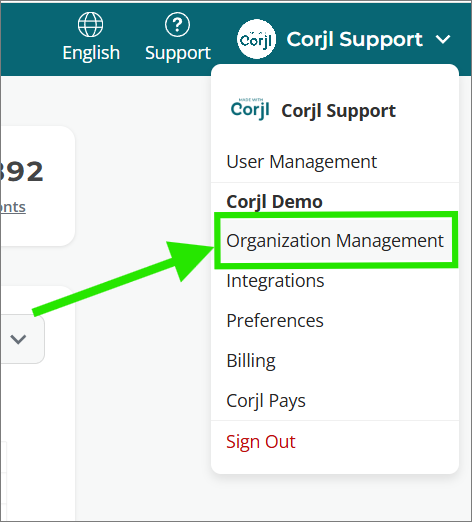
Select the Organization Management option found in your account Settings drop-down in the upper right of your Corjl account:
-
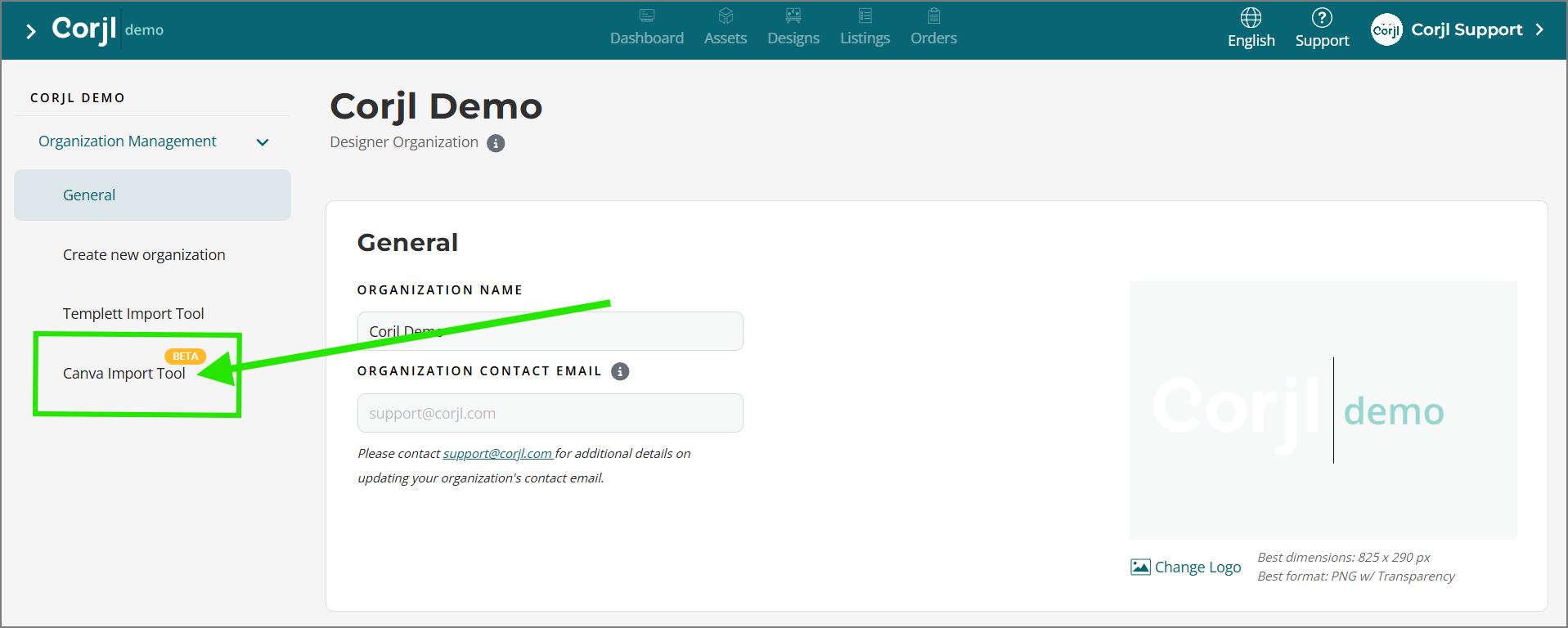
On the next screen, select the Canva Import Tool button from the left menu area:
-
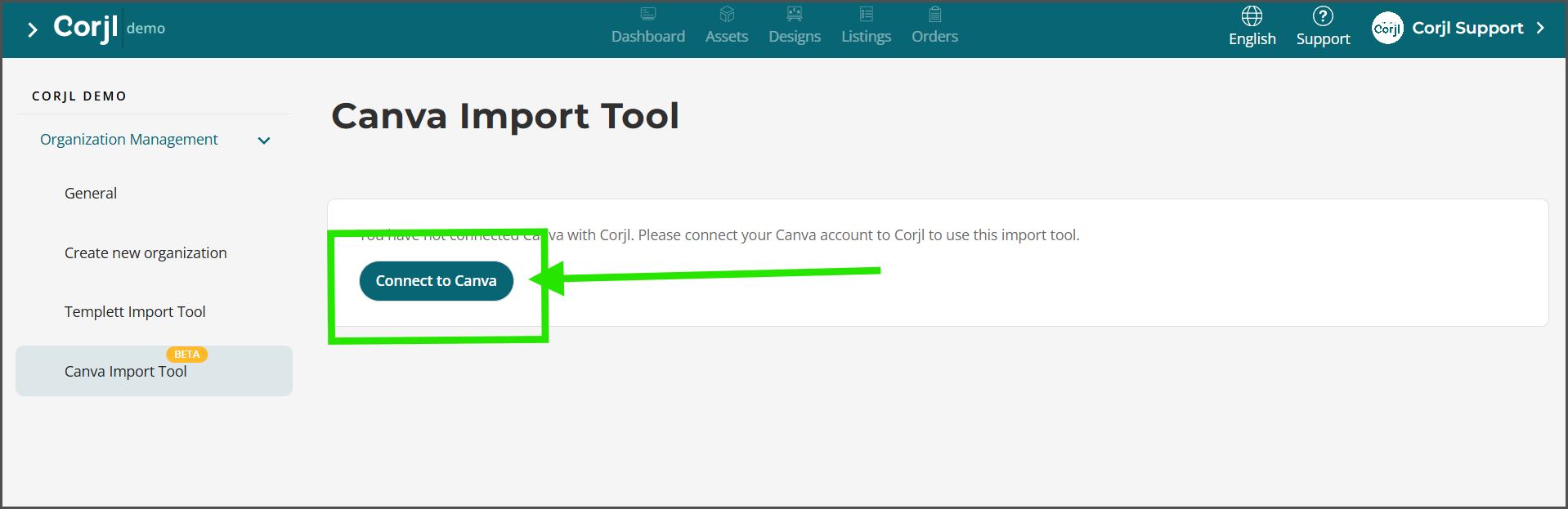
Next, click the Connect to Canva button:
-
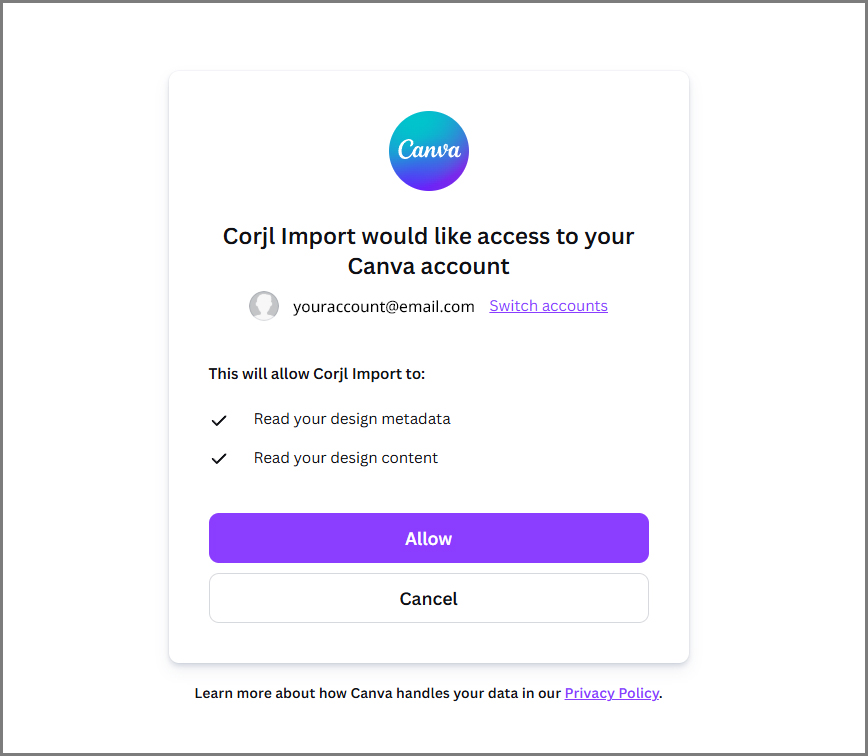
After clicking the Connect to Canva button, you will be directed to Canva to link your account. Click on the Allow button to begin the import:
-
Once the import process begins, you will see your Canva designs appear on the Canva Import Tool page. (Depending on the number of designs you have, this may take a bit of time.)
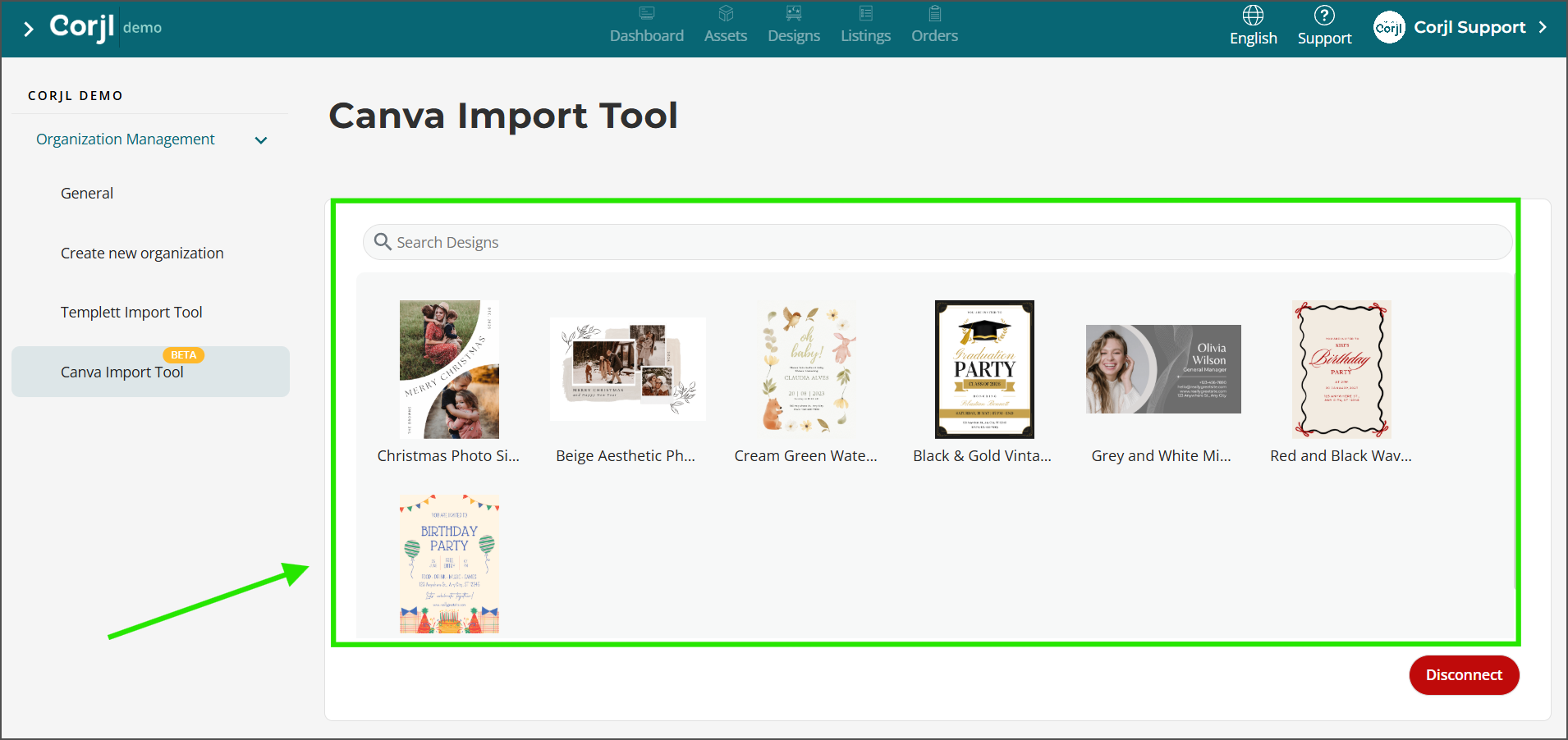
🔍 Step 2: Selecting Your Canva Designs for Import
The next step is to move your Canva designs into the Imports section of your Corjl account for review.
- Click on the Canva design you wish to move to the Imports section of your account. Hold down the Ctrl button while clicking to select multiple designs at one time.
-
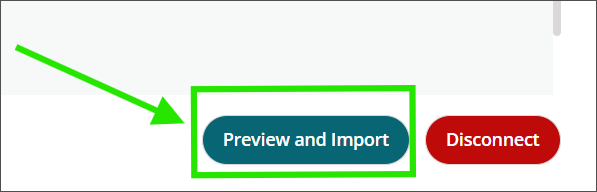
Once the designs are selected, click on the Preview and Import button in the lower right of the screen:
-
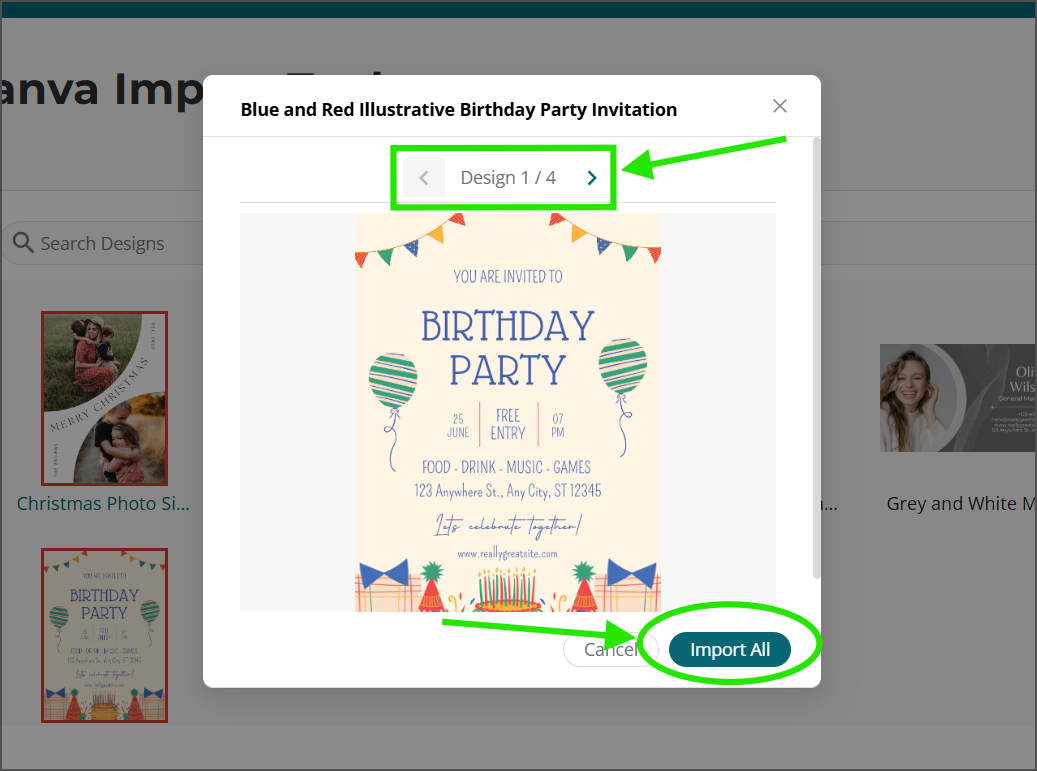
In the pop-up screen that opens, you can confirm the designs that you will be moving to your Imports folder. User the arrows above the design preview to view multiple designs. When you are ready, click on the Import/Import All button.
- You can now find your Imported Canva Designs in the Imports section of your Designs page. Click on the Imports tab that now shows in the left menu area to view and approve your designs.
Please note: Depending on the number of designs you are selecting for importation, it can take up to 5 minutes for your designs to appear in the Imports page.

✅ Step 3: Review and Approve Your Canva Designs
🚨Please Note: Some slight shifting of design elements and other minor changes may have occurred to the designs when being imported (see the Important Troubleshooting & Tips section below for more information).
It is important that each design is reviewed and approved before being added to the main Designs area of your Corjl account.
This approval process has been designed to be quick and easy. Follow the steps outlined below to review and approve your designs:
-
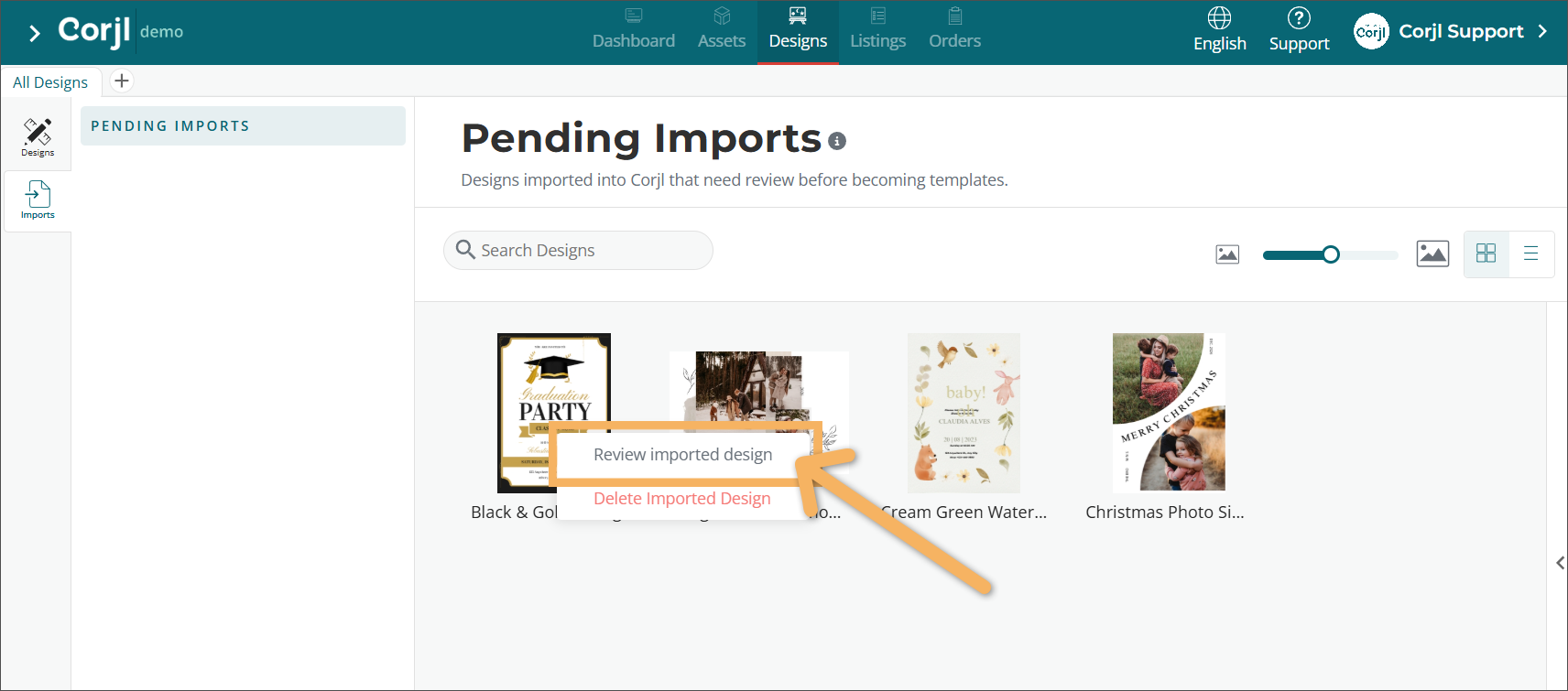
Open one of the designs found in your Pending Imports area by either double-clicking on the design thumbnail, or right-clicking and selecting Review imported design.
-
Once the design is opened in the Editor, you can review and make any needed adjustments.
You will see three button options highlighted in the upper left of the page to help with the approval process:
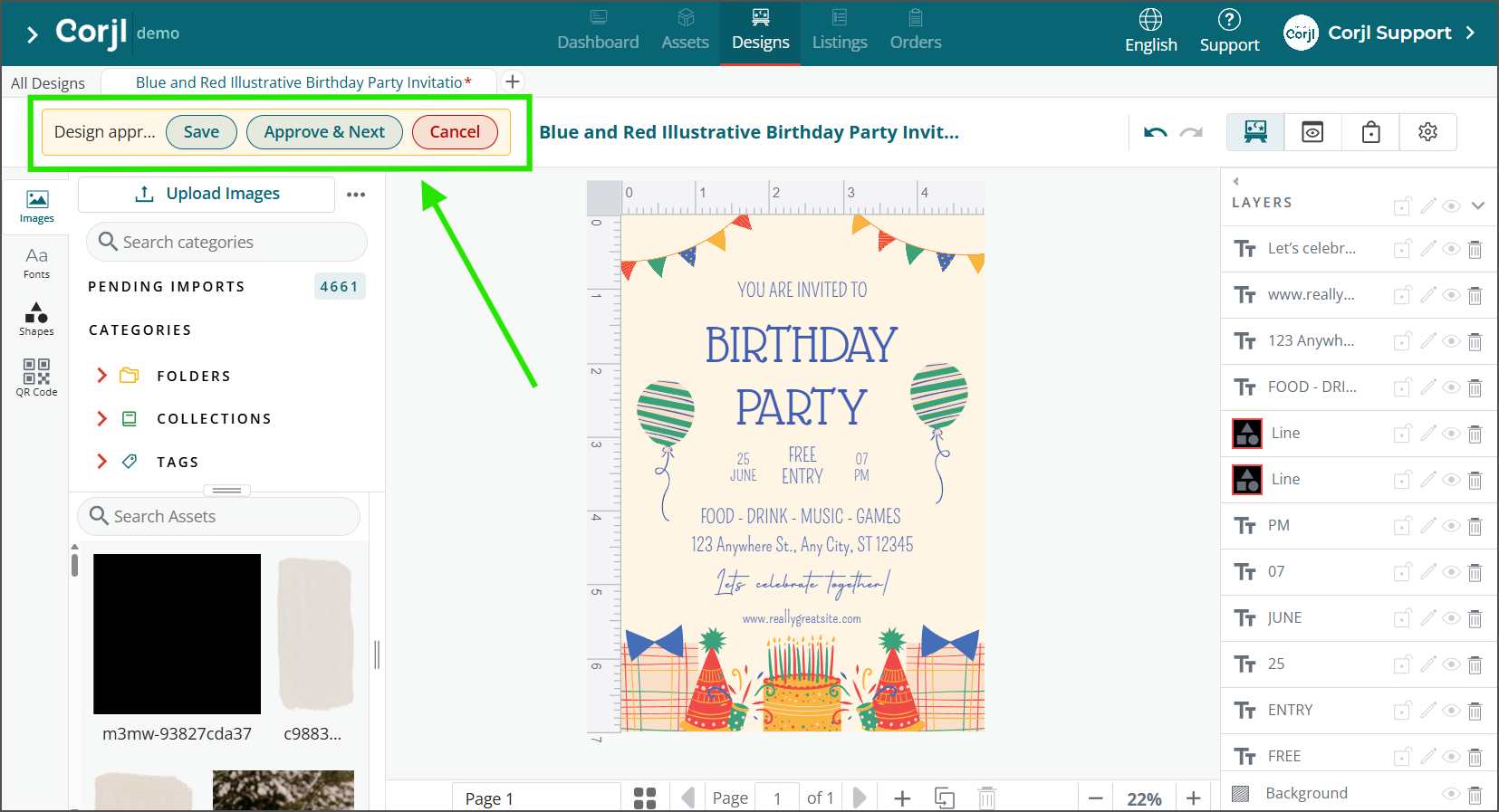
These buttons and their functionality are outlined below:
- Save – This button saves your progress on the design. Any changes you have made will be saved, however, the design will remain in the Pending Imports area.
- Approve & Next – This button will save changes and also approve the design—moving it into the main Designs folder for your account. It will then automatically open the next design in the Pending Imports folder for review.
- Cancel – Use this button to exit the approval process and close the design. The design will remain in the Pending Imports area.
And that’s it! Your approved designs will now appear in the Designs area for your Corjl account and are ready to be added to a Corjl listing for sale.
🚨 Important Troubleshooting & Tips
Using the Canva Import Tool will save you countless hours of time from having to recreate your designs by hand in Corjl.
However, because of the differences between the two platforms, there will likely be some issues with your designs that you will need to manually adjust for a successful import.
🔠 Font Conversion Behavior
- Fonts in the Canva design must be previously uploaded into your Corjl account for it to properly be assigned to text in imported designs.
- This means that unless Corjl can find the matching font in your Corjl account, a generic font will be used in text boxes in Imported designs.
- It is strongly advised that you upload the fonts from your Font Library into the Asset area of Corjl before importing your Canva designs.
🎨 SVG Conversion Issues
You may see the following issues with SVG image when importing your designs:
- If an SVG image in Canva has opacity/transparency or other Effect applied to it, Canva may flatten or rasterize it into a PNG upon export. If this occurs, color changing ability will be limited to using the Hue image style.
- You can download this PNG image from Corjl and convert it back into an SVG with a program like Illustrator or by using a web converter tool like PicSVG.
- SVG images with lots of complicated parts may either be merged together with other SVG images, or broken up into smaller SVGs.
- One solution is to isolate the parts of broken up SVG images onto a single page and then download the image as a PNG. Then you can upload the new PNG back into Corjl for use in the design.
🖼️ Clipping Mask/Frames Behavior & Cropped Images
- Images that have been clipped to Frames in Canva may become unattached during the Import process. You can reattach images to these Frames using the steps outlined here.
- Images that have been cropped in Canva may transfer over uncropped in your imported designs. You can re-crop images by double-clicking on them and cropping with the image controls.