
Design Templates
What are templates?
Templates are ready-made Corjl designs you can use as a starting point for your own designs. Browse Templates to explore finished examples, see how different Corjl features can be used, or create a new design without starting from scratch.
You can create a new design directly from a Corjl Template, or add a copy to your Sandbox if you want to customize the Template itself and reuse it later.
Where to find Templates
- Select Designs from the top navigation.
- In the left panel, select Templates.
- Use the Corjl Templates tab to browse Templates provided by Corjl.
- Use the Sandbox tab to view Templates you’ve added and customized for your account.
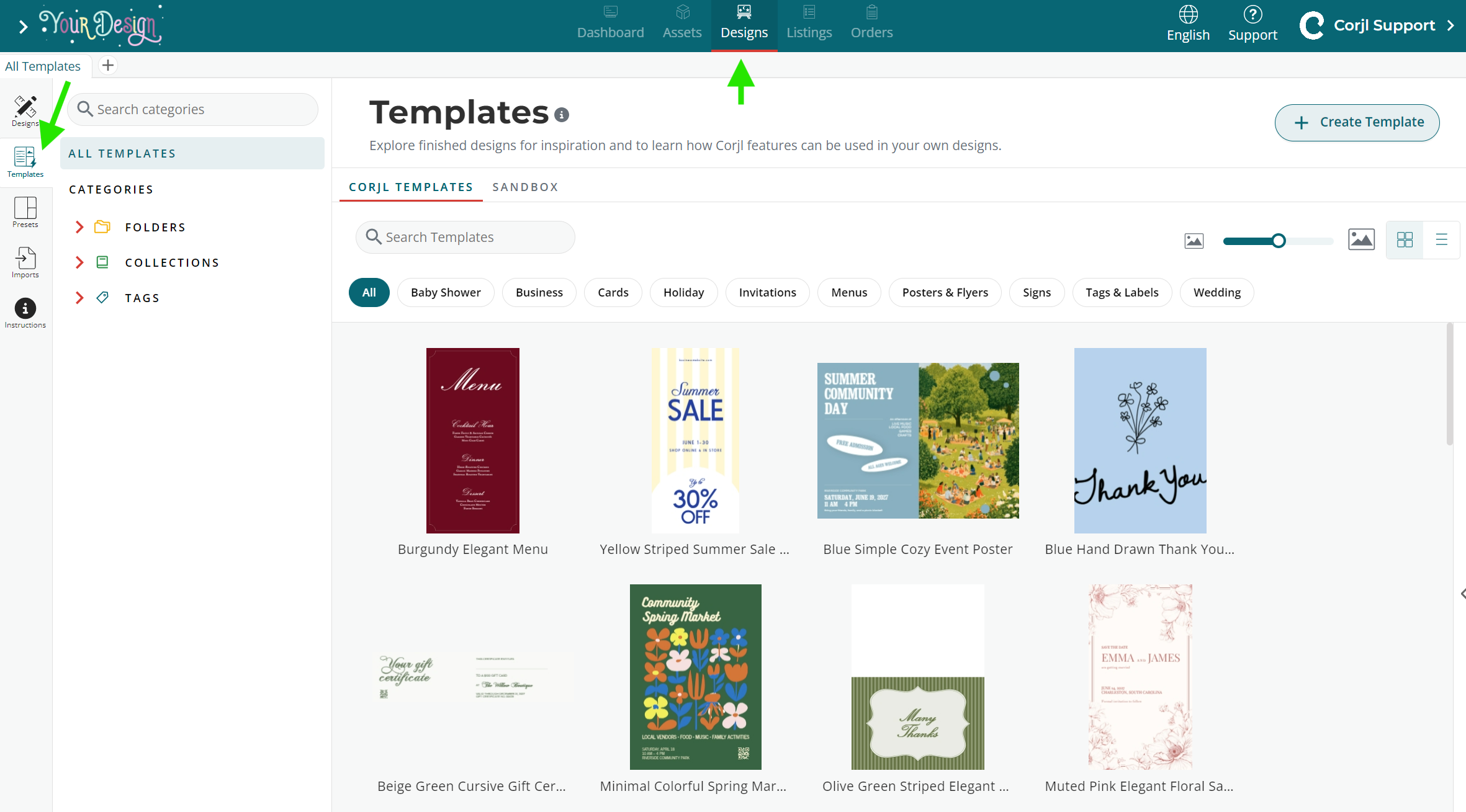
You can also access Templates when using Create New Design.
Corjl Templates and your Sandbox
The Templates page is divided into two areas:
Corjl Templates are ready-made Templates provided by Corjl. The originals are protected so they stay the same for everyone.
Sandbox contains your own Templates. When you add a Corjl Template to your Sandbox, Corjl creates a copy for your account that you can edit and reuse.
This means you can use a Corjl Template in two different ways:
- Create New Design if you want to immediately create a design from the Template.
- Add to Sandbox if you want your own editable copy of the Template to customize and reuse.
Browsing Corjl Templates
Open the Corjl Templates tab to browse the available Templates.
Hover over a Template to see the available actions:
- Preview
- Create New Design
- Add to Sandbox
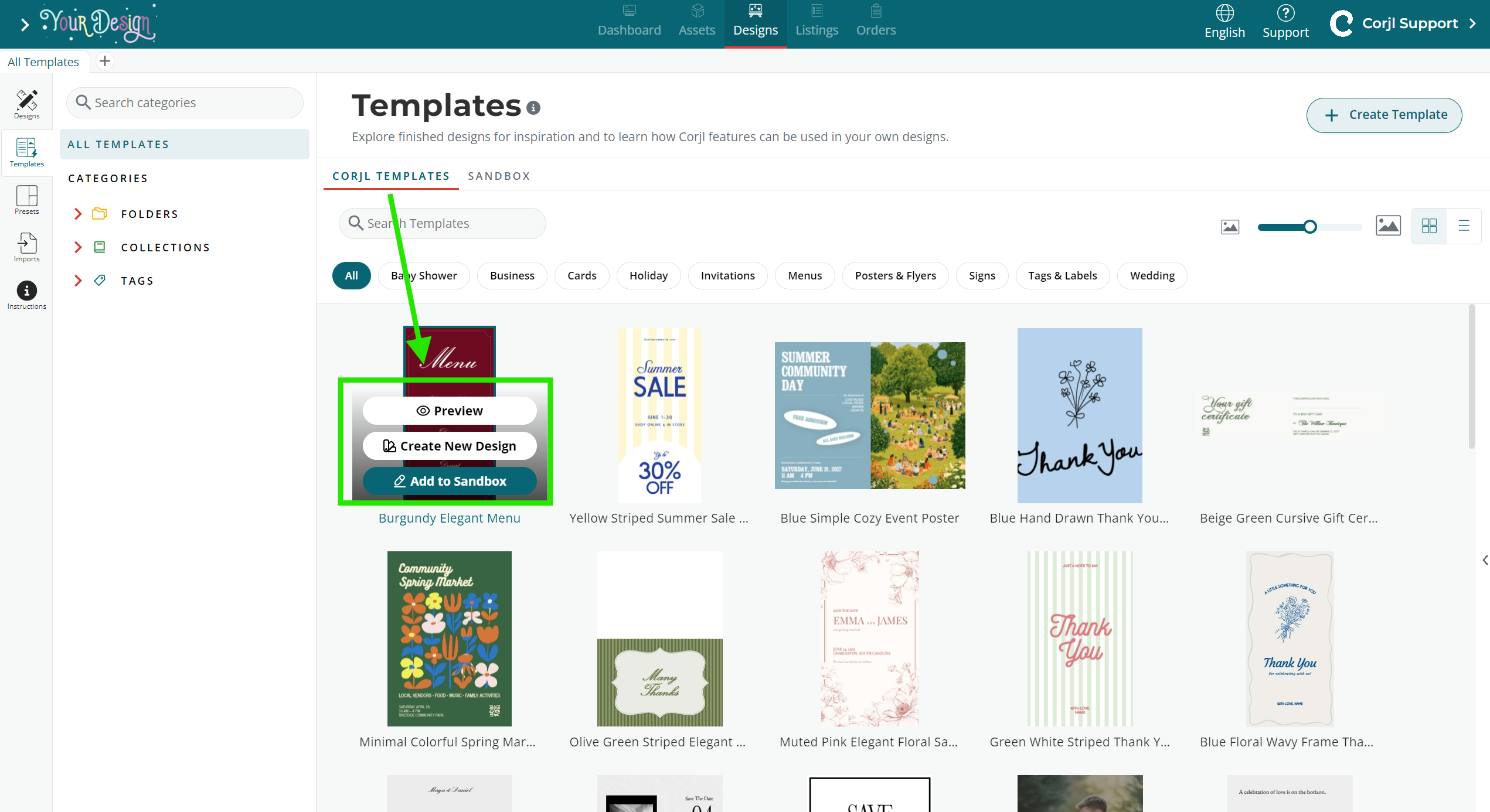
Preview a Template
Select Preview to take a closer look at a Template without creating or changing anything.
Preview is useful when you want to explore the design before deciding whether to create a design from it or add it to your Sandbox.
Create a new design from a Template
Use Create New Design when you want to use a Template as the starting point for a new design.
- Find the Template you want to use.
- Hover over the Template.
- Select Create New Design.
- A new design is created and opened in the Design Editor.
You're now working with a Design, not the original Template. Any changes you make apply only to your new Design.
The original Corjl Template remains unchanged and nothing is added to your Sandbox.
Add a Template to your Sandbox
Use Add to Sandbox when you want your own copy of a Corjl Template that you can customize and reuse.
- Find the Template you want to use.
- Hover over the Template.
- Select Add to Sandbox.
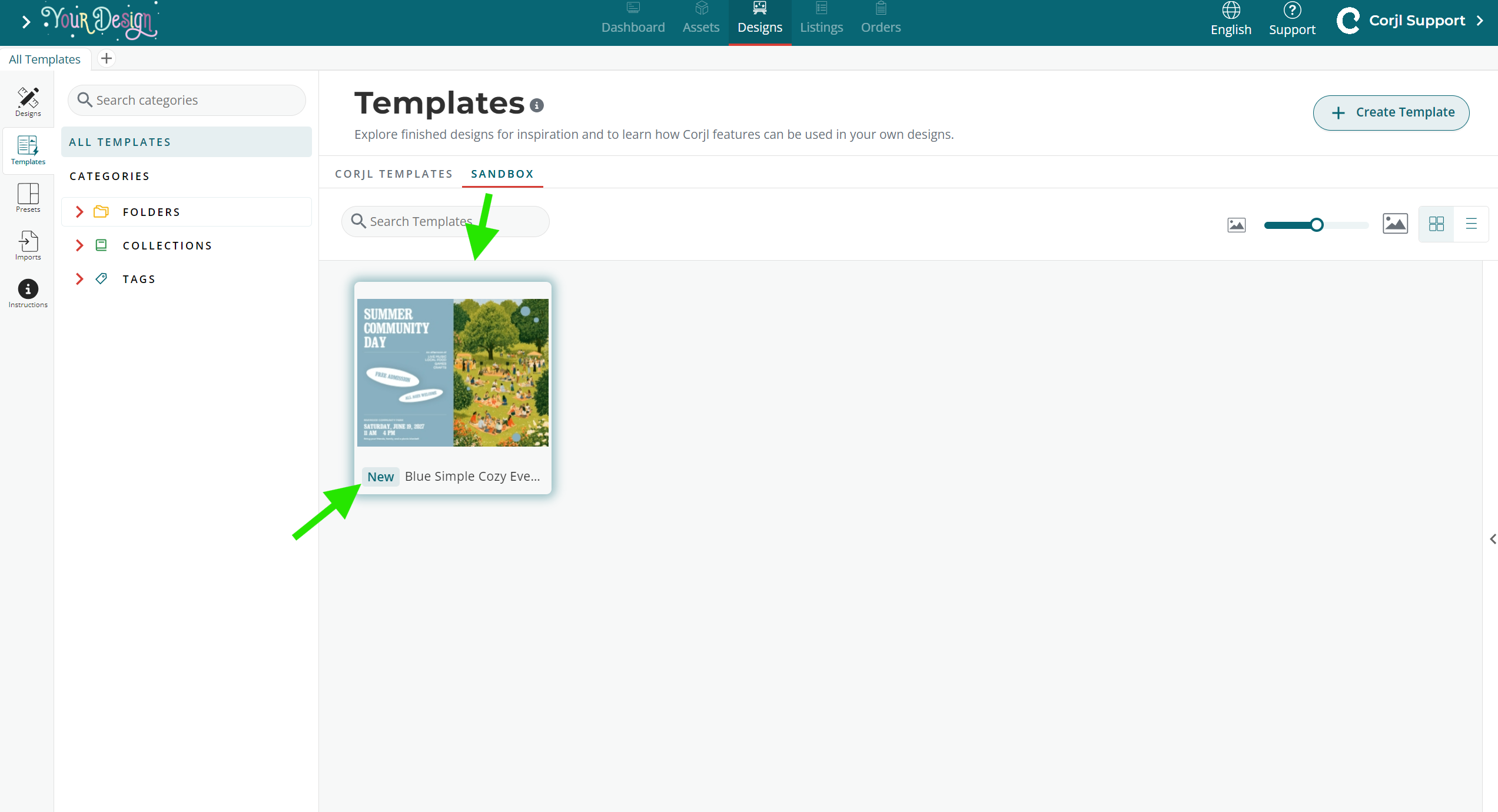
- Corjl creates a copy and takes you to the Sandbox tab.
- Your newly added Template is highlighted so you can easily find it.
The copy in your Sandbox belongs to your account and can be edited without changing the original Corjl Template.
Working with Templates in your Sandbox
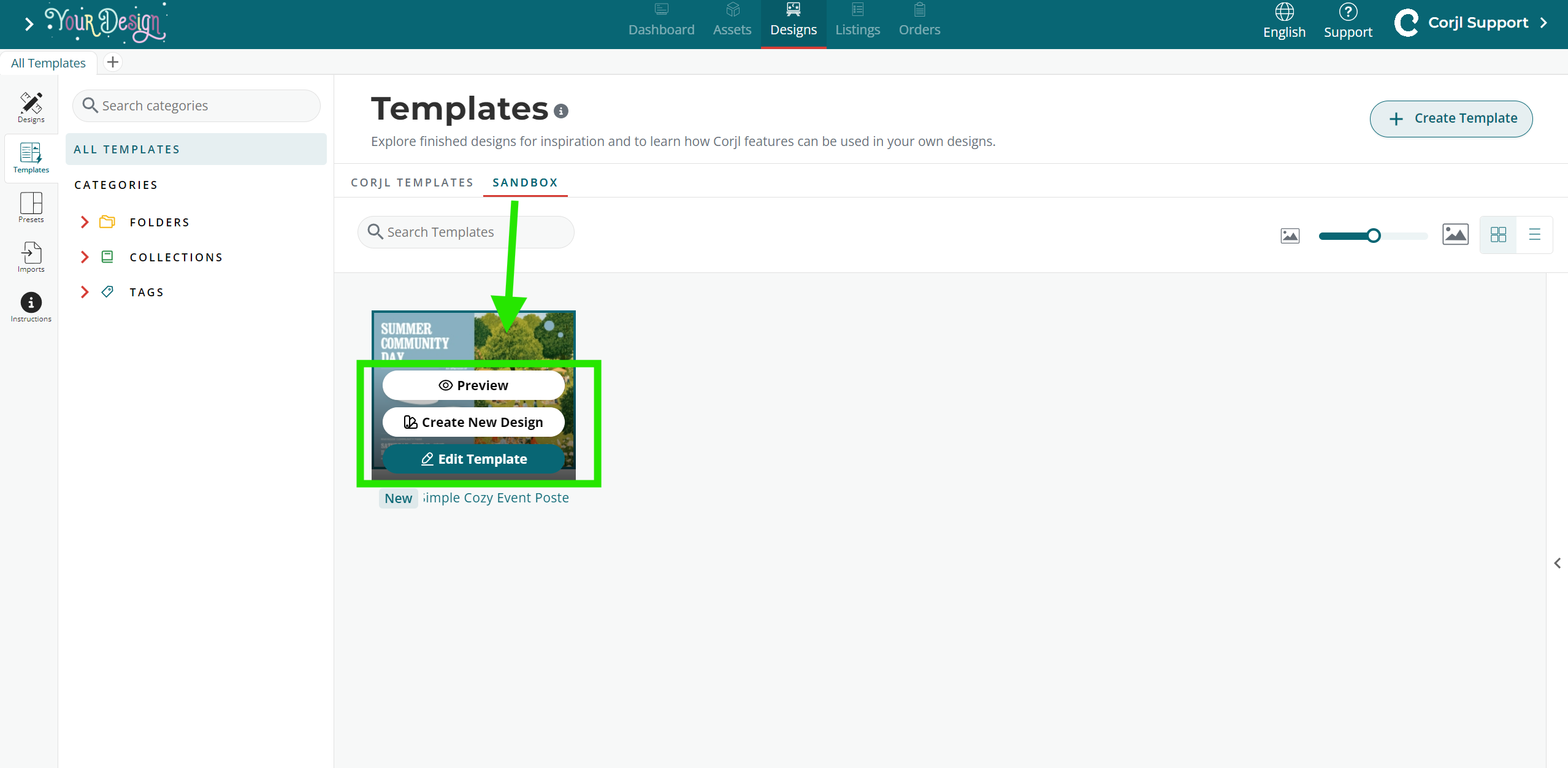
Your Sandbox contains Templates you've added and customized for your account.
Hover over a Template in your Sandbox to choose how you want to use it.
Preview
- Select Preview to view the Template without editing it or creating a new Design.
Edit Template
- Select Edit Template to open the Template itself in the editor.
- Changes you make are saved to the Template in your Sandbox. The item remains a Template and can be reused to create future Designs.
- Use this option when you want to update your reusable Template.
Create New Design
- Select Create New Design to create a new Design using your Sandbox Template.
- The new Design opens in the Design Editor, while the Template in your Sandbox remains unchanged.
- Use this option when your Template is ready and you want to start creating a Design from it.
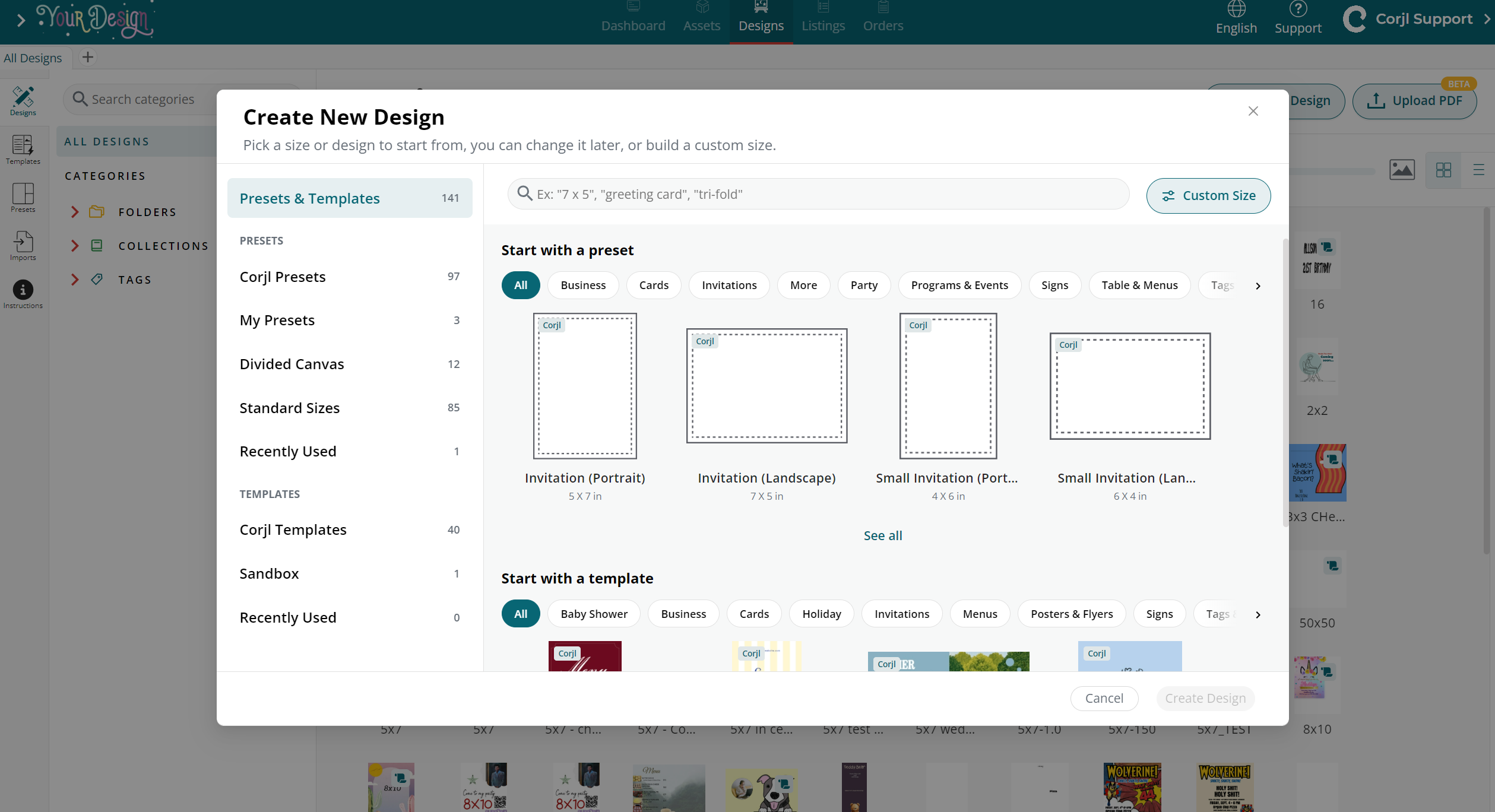
Starting from a Template in Create New Design
You can also browse and use Templates without leaving the Create New Design window.
- Select Create New Design.
- Find the Templates section.
- Browse Corjl Templates or your Sandbox Templates.
- Select See All to view additional Templates.
- Select a Template to create a new Design from it.
The selected Template is used as the starting point for your new Design. The original Template remains unchanged.
Editing a Template from your Sandbox
When you select Edit Template from your Sandbox, the Template opens in an editor that looks very similar to the regular Design Editor. However, you are editing the Template itself, not a Design created from it.
There are a few visual indicators that you're working in the Template Editor:
- All Templates appears in the upper-left corner.
- A Template badge appears next to the Template name.
- Three Template views appear in the upper-right corner: Template Mode, Template Protections, and Template Settings.
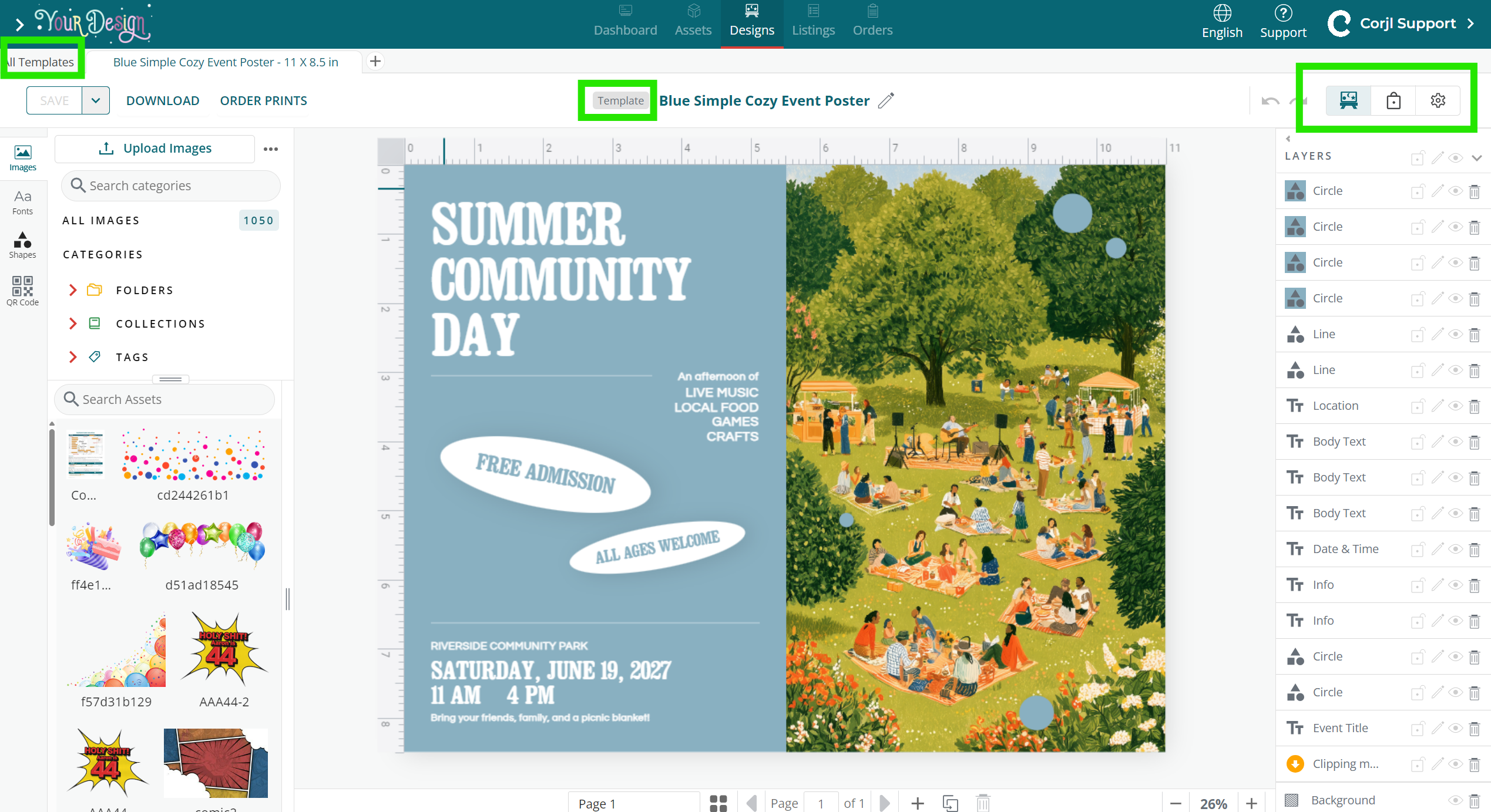
Template Mode
- Template Mode is the main editing view. This is where you add or edit the text, images, shapes, and other content that will be included when you create a Design from the Template.
- Changes made here are saved to the Template in your Sandbox.
Template Protections
- Use Template Protections to set protections for your Template and control what can be changed when working from it.
Template Settings
- Use Template Settings to manage the settings associated with the Template.
Tip: Look for the Template badge next to the title if you're ever unsure what you're editing. When that badge is displayed, you're working on the Template itself rather than a Design created from it.
Frequently Asked Questions
Will changing my Design change the original Corjl Template?
No. Create New Design creates a separate Design for you to work with. The original Corjl Template remains unchanged.
What’s the difference between Create New Design and Add to Sandbox?
Create New Design creates a Design you can start working on right away. Add to Sandbox creates your own editable copy of the Template that you can customize and reuse.
Where does a Template go after I add it to my Sandbox?
You’ll find it under the Sandbox tab on the Templates page. Your Sandbox Templates are also available when using Create New Design.
Can I edit a Template in my Sandbox more than once?
Yes. Select Edit Template whenever you want to update the reusable Template in your Sandbox.
Can I edit a Corjl Template directly?
No. Corjl Templates are protected so the originals remain unchanged. Select Add to Sandbox to create your own editable copy.
What’s the difference between a Preset and a Template?
A Preset starts you with a canvas that already has its size and settings configured. A Template starts you with an existing design and its content already included.
Learn more in Presets vs. Templates: What’s the Difference?
Feedback
Have feedback about this feature? Contact Corjl Support at support@corjl.com.