
Listing Settings - Variations Tab
If your marketplace listing (such as Etsy, Shopify, or WooCommerce) includes variations, they will appear in the Variations tab after the listing is connected to Corjl.
The Variations tab allows you to:
- Assign variation options to specific designs.
- Override the default download behavior for individual variation options.
Note: The Variations tab only appears for listings that have variations configured in the connected marketplace listing.
Assigning Variation Options
When variations are imported from your marketplace listing, every design is assigned all variation options by default.
This means the design will be included in the customer's order regardless of which variation they purchase.
To assign specific variation options to a design:
- Open the Variations tab.
- Locate the design you want to configure.
- Select the appropriate variation options from the Variations drop-down.
- Your changes are saved automatically.
The selected variation options determine which design is included in the customer's order.
Tip: To select multiple variation options, hold the Ctrl key (Windows) or Command (⌘) key (Mac) while clicking.
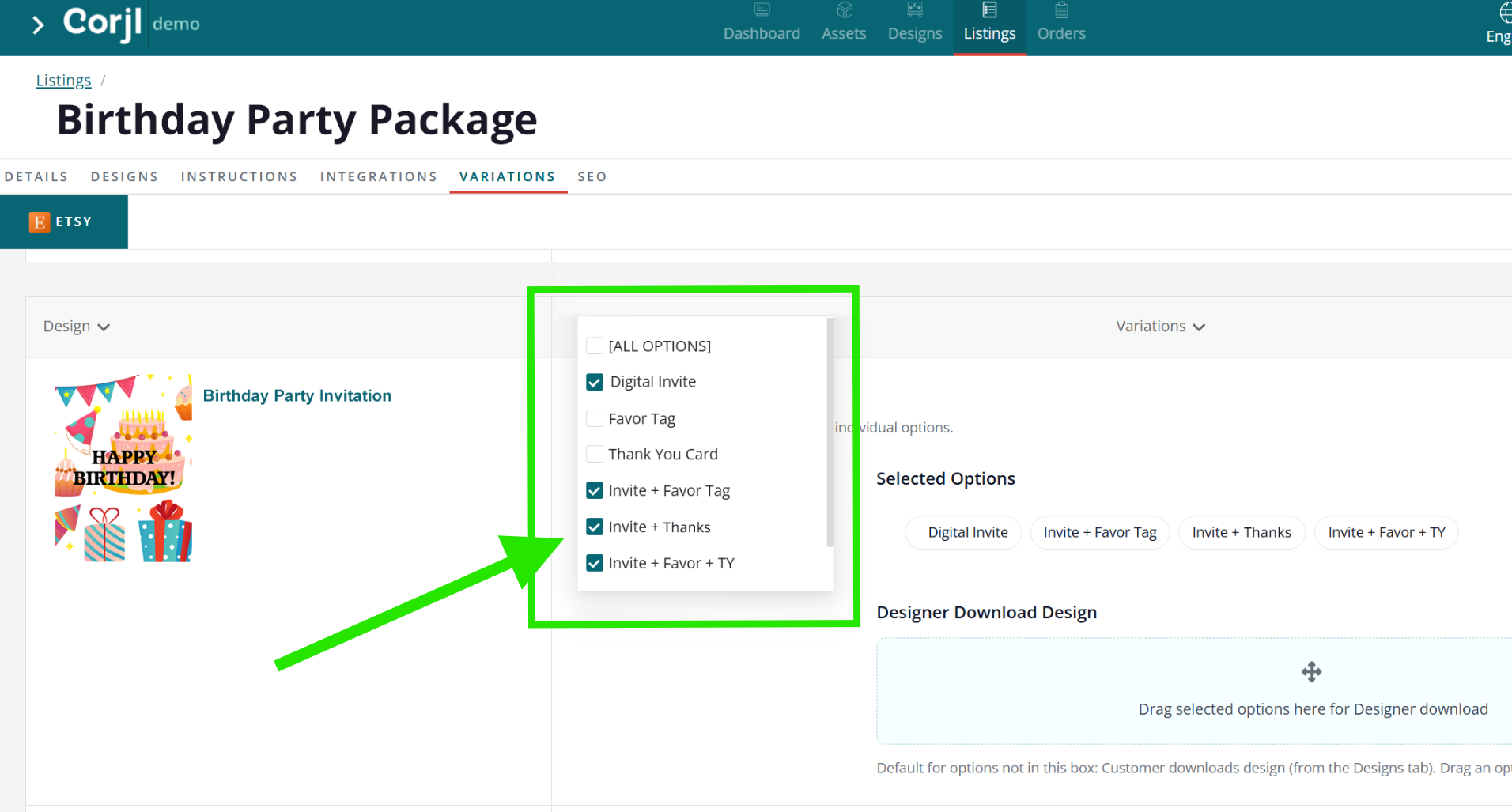
Variation-Level Download Settings
In addition to assigning variation options to designs, you can now override the default download selection for individual variation options.
For example, if you want to offer a design for both Digital Download and also a Printed version you will print and ship to your customer, you can use this feature to get the correct version to your customer.
Setting the Default Download Option
First, choose the download behavior in the Export Options that will be applied for most variation options for the design:
- Customer Downloads Design
- Designer Downloads Design
By default, this setting uses the option selected in your Global Settings. If you want a different default for the majority of the variations options for this specific design, simply select the alternate option.
For example, for listings with quantities of printed cards, you will want to select the Designer Downloads Design option here.

This option applies to all variation options unless you override it in the Variations page.
Overriding the Default Download Option
To assign a different download option for specific variations in the listing, follow these steps:
- Click on the Variations tab
- Locate the design you want to configure
- Click the variation you want to reassign, and drag and drop it into the highlighted area below the listed variations
For example, if your listing has variations for both a Digital Print File and also Printed invitation quantities, click on the Digital File variation name and drag it into the Customer Downloads Design area.
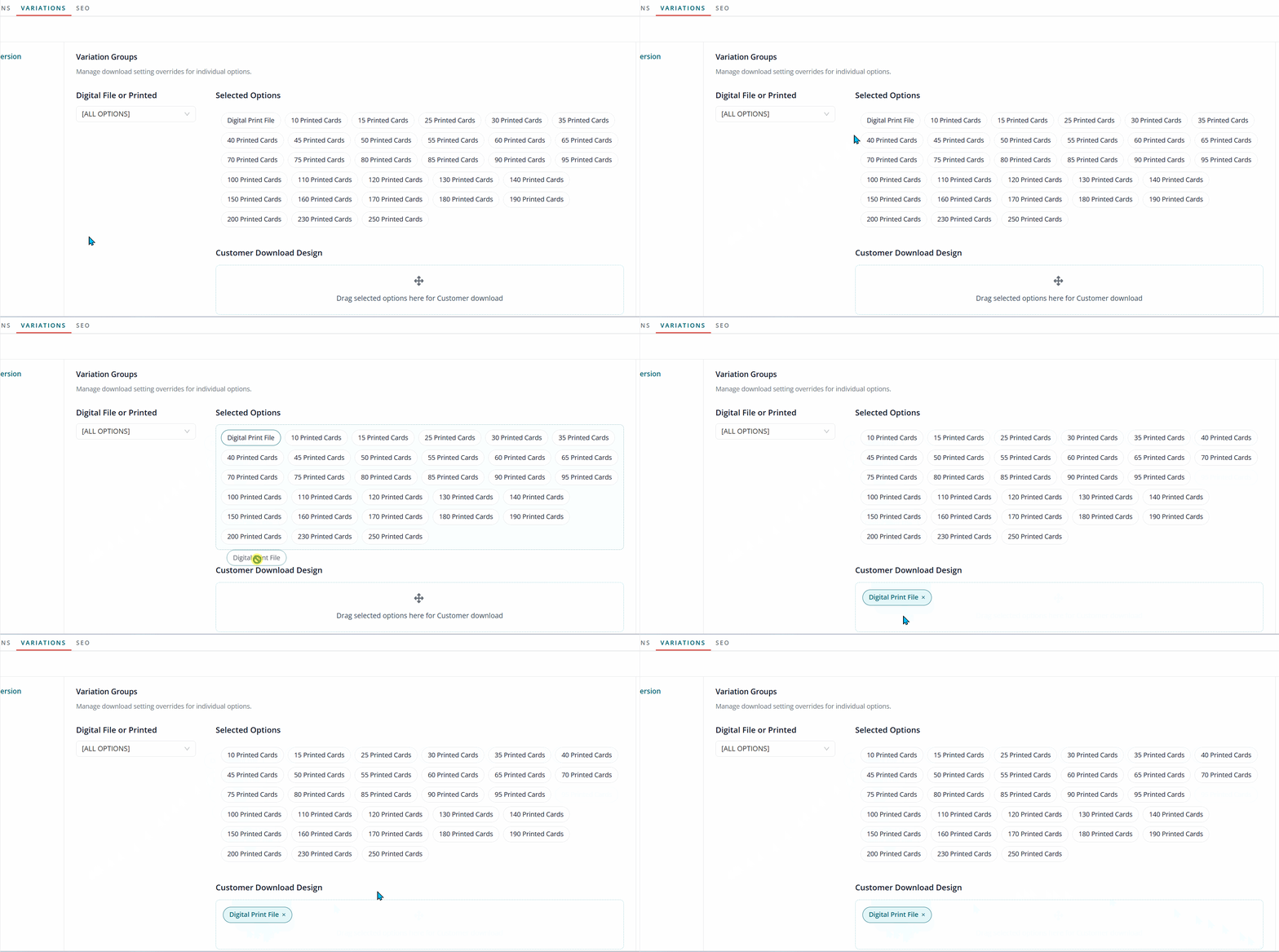
Now when the customer orders with the Digital Print File option, they will see the Download button instead of the Approve Proof button.
Why Use Variation-Level Download Settings?
Previously, sellers often created duplicate designs to support both digital and printed versions of the same product.
With variation-level download settings, you only need one design.
Simply choose the default download behavior, then override only the variation options that need to behave differently.
This makes listings easier to manage while supporting both digital and physical products.
Listings with Multiple Marketplace IDs
If multiple marketplace IDs are connected to the listing, you'll see separate marketplace tabs (such as Etsy or Shopify) or a drop-down menu for selecting the appropriate marketplace listing.
Variation assignments are managed independently for each connected marketplace listing.