
Setting Up a Physical Product Listing on Etsy
The following information can be used as a guide for setting up your listings as Physical Products on Etsy. You can sell Printed invitations either alone in a new separate listing, or combine print options with the Digital Template option in the same listing.
We would actually recommend converting your existing listing for the Digital Template to a Physical Product listing and just adding the Printed Quantity options as variations over starting a new listing from scratch as this will most likely be the fastest way to boost your shop sales.
Of course, you can experiment with a few different options and determine for yourself which will work best for your business model.
Please note: Selling digital templates as an option in a physical product listing is completely acceptable with Etsy's terms as long as the listing also includes options to be printed and shipped.
📋 Category
- For the category, select an option that best reflects the type of design you will be offering for sale. For example, a common option would Paper & Party Supplies > Paper > Invitations & Announcements > Invitations
- For the type of item, select Physical item and then Made To Order for when it was made.

✅ Adding Etsy Variations
💡Pro Tip: You can use a Listing Management tool like Vela to create listing profiles to bulk update and quickly add Variations to your Etsy listings.
- Click on the + Add variation button to add your variations for the listing, then click on the + Create your own option.
-
Add a name for your variation that best reflects the types of items you will offer.
For example, Digtial File or Printed if offering both the digital print file and printed and shipped items.
-
Use the Options field to add the variation selections for customers to choose from.
For example, one variation for each of the different print quantities offered. Then click Done.
-
On the next page, you may also add a second set of variations if desired.
For example, you can also add Paper Options if you are offering multiple paper selections.
-
Toggle on the Prices vary for each option to be able to set the pricing for each variation option.
If you have two sets of variations, you will be able to select either option or both for variable pricing with the given drop-down menu.
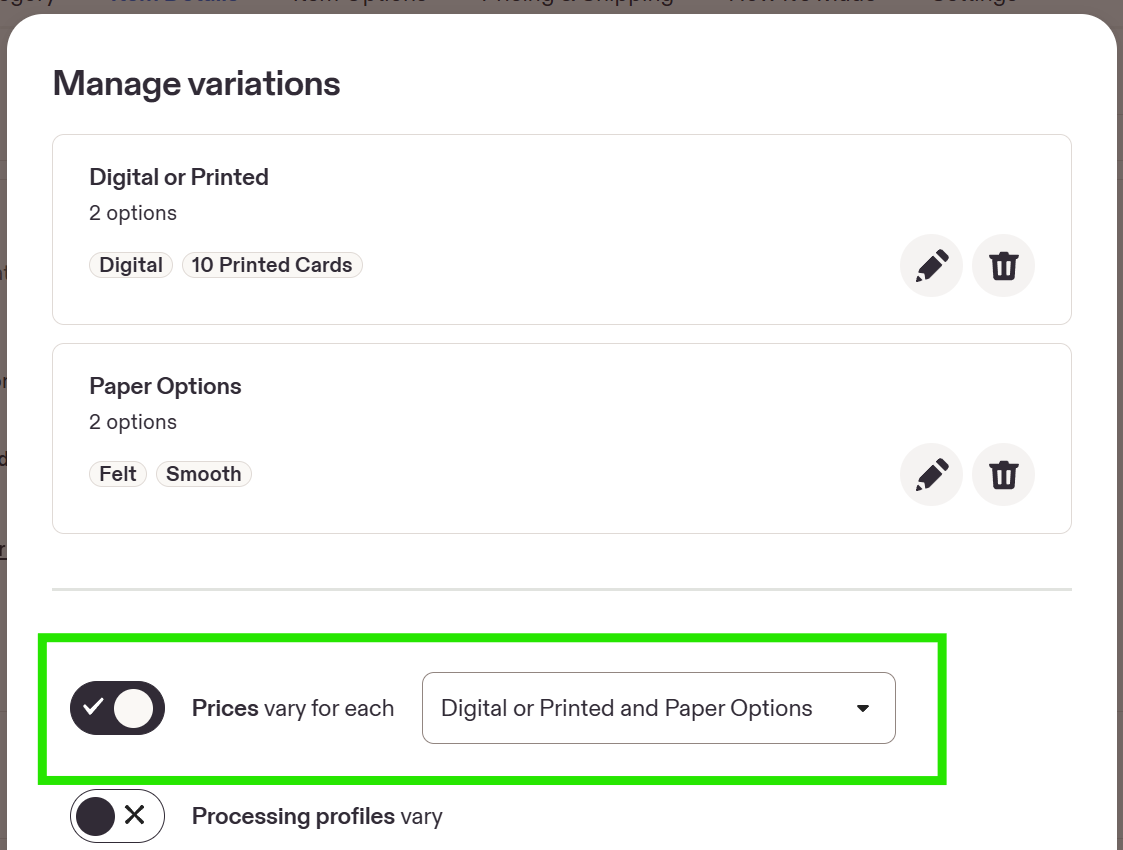
You may leave the other options toggled off or edit as desired.
-
Once you have added your variation options, you can now enter in the individual pricing for each option in the Price column next to each variation.
If you have two sets of Variations, you can set pricing for each combination of the two variation options.
For example, if you have a variation for a quantity of 20 Printed Invitations and you have both Standard Matte Paper and Pearl Paper in your second set of variations, you can configure different pricing for the 20 Printed Invitations quantity for both the Standard and Pearl paper options.
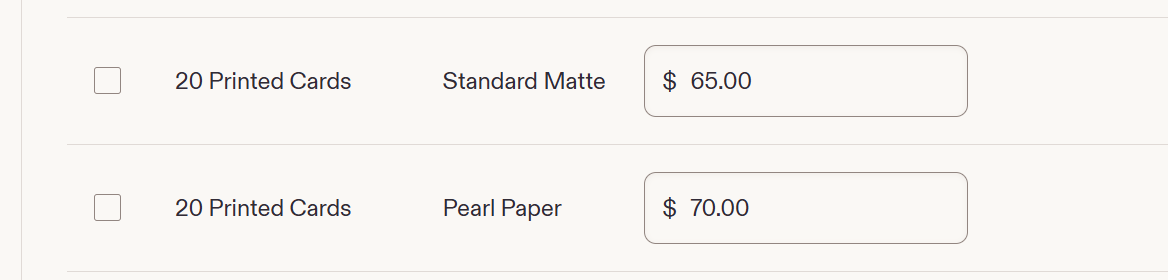
The listing price will now adjust based on each variation combinations your customers choose.
🏷️ Attributes
- Add the Tags that you feel best represent your listing here.
- If you feel it is useful for SEO purposes for your listing, you may fill in the other attributes (but it is not required).
🚚 Shipping and Processing
-
For best search result placement, it is recommended that you offer Free Shipping for your physical product listings. You can do this by adding your shipping costs into the pricing of your listed products.
Please Note: For listings that offer both the Digital Template option and Printed designs in the same listing you MUST offer free shipping or your digital customers will be charged shipping as well.
- You can offer other faster shipping options as Shipping Upgrades (see instructions below) that your customers can select when checking out by configuring these options in a Shipping Profile.
- Shipping prices and shipping times can be viewed in the Fulfillment Pricing tab for a design.
-
Corjl Prints print order processing times are 2-3 business days. We recommend you add at least one extra business day to allow for time to submit the print order to Corjl.
(Rush processing is available for an additional $19.99 which you can offer as an upgrade to your customers if wanted.)
Set Order Processing Schedule
Before creating a Processing Profile, you will want to set your Order processing schedule. We recommend a Monday-Friday schedule (excluding Saturdays and Sundays) as print orders are not processed on weekends.
To set your processing schedule, follow these steps:
- Below the Order processing schedule section, select Edit.
- Select if you only process orders Monday through Friday, or if you want to include Saturday and/or Sunday in your processing times.
- Select which holidays you’ll process orders on (US and CA only).
- Select Update.
Creating Processing Profiles
To set up a Processing Profile, follow the steps below:
- Go to your Etsy Settings > Shipping settings.
- Click on the + Create new button under the Your processing profiles section.
- Select Made to order.
- Select the desired number of days under the How much processing time do you need? drop-down box.
- Click Create.
Creating Shipping Profiles
To set up a Shipping Profile on Etsy, follow the steps below:
- Go to your Etsy Settings > Shipping settings.
- Under Shipping profiles, select the + Create profile button.
- In the Shipping prices section, choose I’ll enter fixed prices manually.
- Select United States for Ship from country and enter 85024 for the Origin ZIP code.
-
Choose the Shipping service. This will depend on the option you want to choose for the majority of your orders based on the options shown in the Fulfillment Pricing tab under the Shipping section.
Please Note: When selecting a Shipping service, if you do not know the exact shipping provider, select the provider that best matches the number of days shipping will take. Your customer will receive the exact shipping provider information when you close the order out with the tracking number.
- Under the What you’ll charge section, choose Free shipping (recommended) or set your shipping price here.
- Choose Add a shipping upgrade to offer buyers the option to pay more for faster shipping.
For example, this is where you can add 2-3 Day Shipping (as a USPS Priority Shipping option) for a higher price. - Type in a Profile name to reuse this information on multiple listings.
- Select Save profile.
For more information on Etsy setting up shipping see this information here.
✨ Etsy Best Practices for Physical Products
Here are some tips and tricks for managing Physical Product listings on Etsy:
Remember to close out your orders in Etsy.
Because both Digital and Printed options are sold as a Physical Product, you will need to manually close out all orders (even Digital) in your Etsy account.
- For Print orders you will use the shipment tracking information in the Shipping Notification email you receive from Corjl Prints to close the Etsy Order.
- For Digital Design orders you will select Other from the Shipping carrier drop-down box and then the current date for the Tracking number (for example "05-25-2026"). You may enter "Emailed' or "Sent by Email" in the Other text field.
This will ensure you keep your Etsy Star Seller status.
Update your "Ship-by" date if needed.
If you have processing delays or a customer is taking longer than expected to edit and approve their design, you can change the "Ship-By" once as long as the original date has not passed.
To update the Ship-by date for an Etsy order follow the steps below:
- Go to your Orders page in your Shop Manager.
- Find the transaction you want to change.
- Choose the … (ellipsis) icon.
- Choose Update ship by date.
- Select your new ship by date.
- Add a note to the buyer explaining the new ship by date. The buyer will automatically be sent an updated estimated delivery date for their order based on the new “ship by” date.
- Choose Update & notify buyer.
Update your customer messaging.
If you choose to offer both the digital template and printed items in the same Etsy listing, your Digital Template customers will receive notifications for delivery and shipping times. This can be confusing, so you will want to clearly communicate for them to ignore that messaging.
Here are some examples of messaging you can use:
For the Message to Buyers:
- Digital Template access is immediate and will be sent by email or by going directly to Corjl.com to log in. Shipping and delivery times do not apply to Digital Template orders and can be ignored.
- Digital Template Customers - Please ignore any messaging regarding Shipping or Delivery times. Nothing will be shipped to you. You will have instant access to your design by email or by going directly to Corjl.com and clicking the "Edit Your Design" button.
For the Note to buyer when closing out orders:
- This is an automated message sent by Etsy. Please ignore this message if your item was a Digital Template File sent to you through email. Thank you!
💡Pro tip: Turn on the Auto-reply feature in your Etsy messages letting your customers know that they can access their Designs immediately after purchase by going to Corjl.com and clicking on the Edit Your Design button.